Learn how to manage users across your entire account from a single, centralized view.
Overview
The Account User Management page allows Account Admins to view and manage all users who have access to at least one project in the account. This centralized hub simplifies the process of inviting users to multiple projects, editing their permissions, or revoking access in one go.
Note: Account user management is only available to account admins.
Accessing User Management
To manage users at the account level:
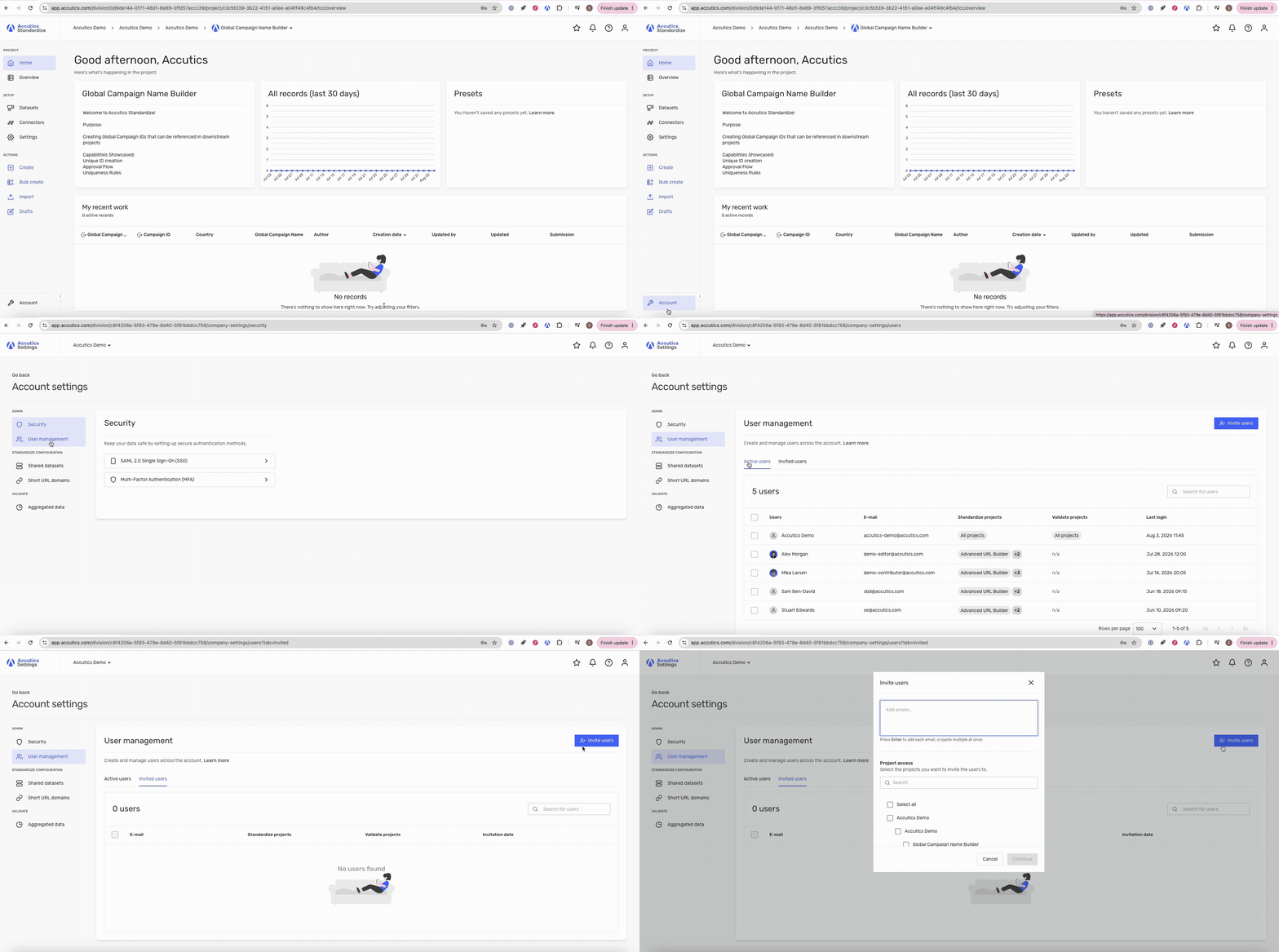
From the side navigation bar, click on 'Account' in the bottom left corner.
Select the 'User Management' tab.
Here you will find two tabs:
Active users: Users who have already accepted their invitation and set up a profile.
Invited users: Users who have been invited but have not yet activated their account.
Inviting users
You can invite multiple users to multiple projects simultaneously:
Click the 'Invite users' button on the top right.
Add users: Input the email addresses of the users you wish to invite.
Select projects: Choose the projects they should have access to. Selecting a parent division will automatically select all child divisions and projects within it.
Configure access: In the bulk table, define the User role, Approval role, and any User attributes for each project.
Click 'Invite'.
Tip: You can drag values down (similar to Excel) directly in the bulk invite table to quickly fill out user attributes and roles.
Managing existing users
Editing a single user
To view or change a specific user's access across the account:
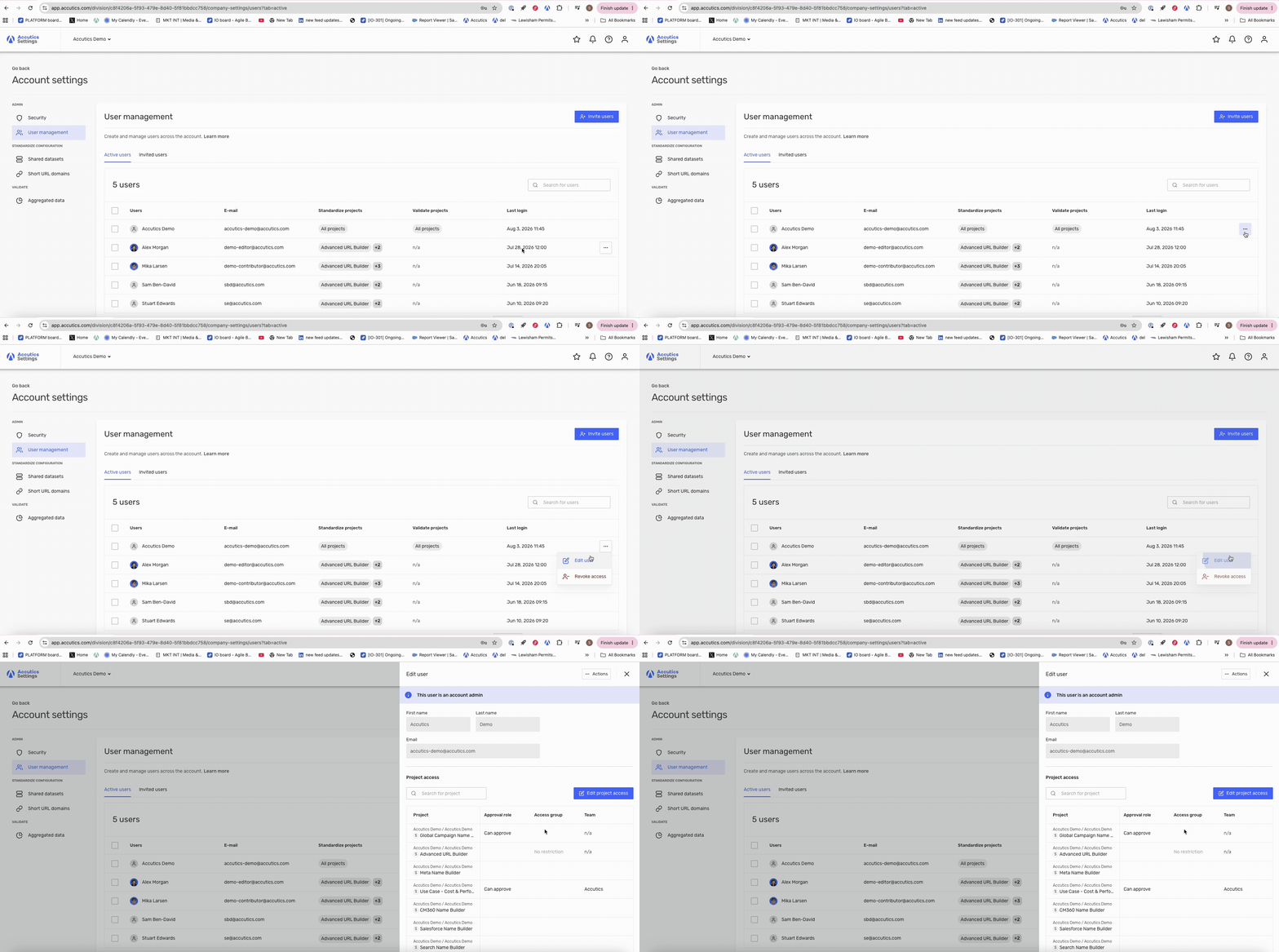
Locate the user in the 'Active users' or 'Invited users' tab.
Click on the meatballs menu (...) > 'Edit user'.
In the modal, you can:
Toggle SSO: Require SSO for this specific user (if enabled for the account).
Manage Project Access: View all projects the user belongs to and edit their roles or attributes.
Add Projects: Click to assign the user to additional projects.
Revoking access
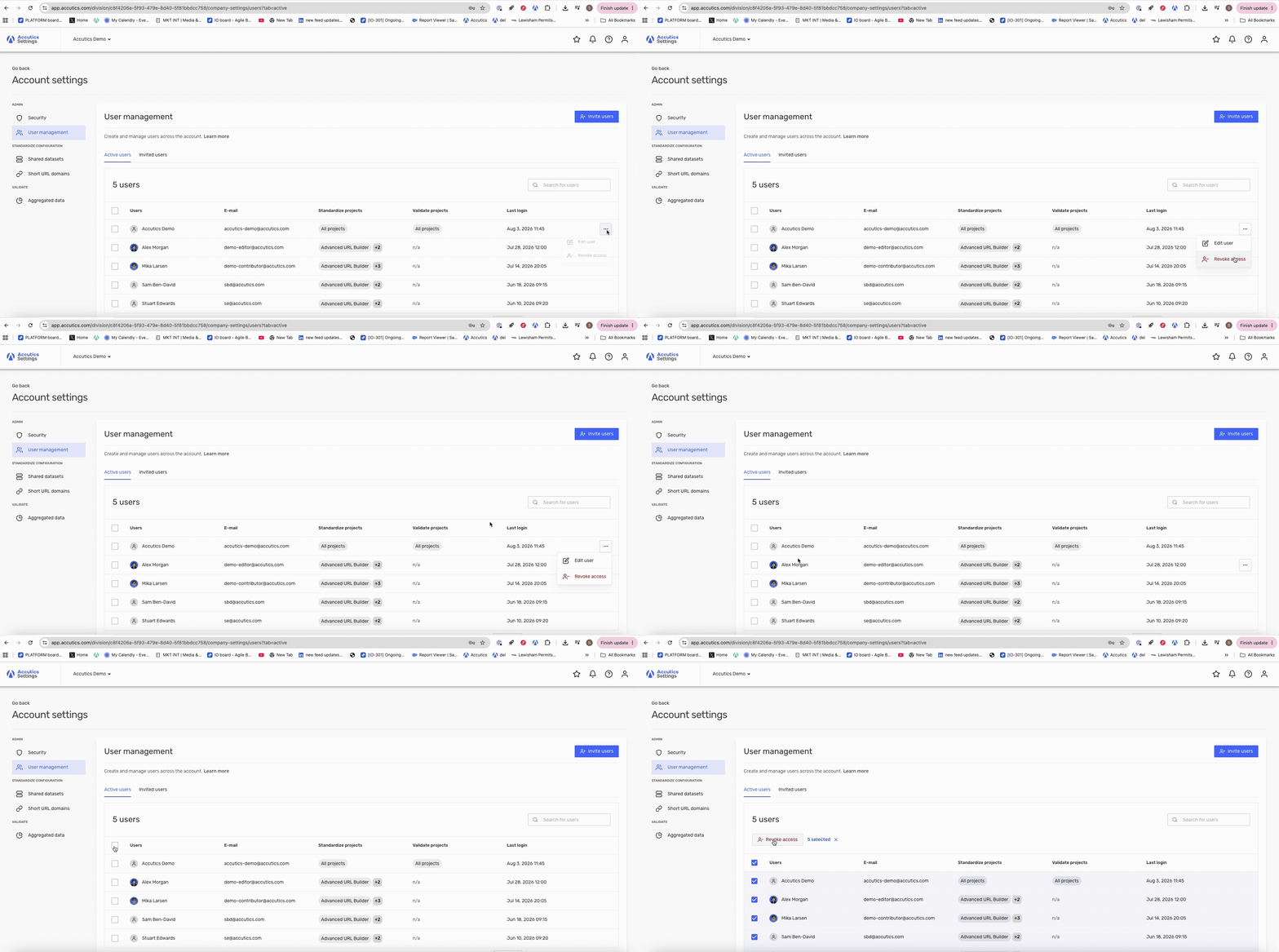
To remove a user's access to the account:
Single user: Click the meatballs menu (...) > 'Revoke access'.
Bulk: Select multiple users and click the 'Revoke access' button at the top.
Data Integrity & Validation
To ensure your account configuration remains clean and consistent:
Attribute Uniqueness: The system automatically validates that user attribute field names are unique within project configurations to prevent data conflicts.
Smart Merging: When viewing attributes across multiple projects, the UI merges fields that share the same type and exact name into a single entry for easier management.